Working with Clinical Datasets
Source:vignettes/adam-clinical-dataset.Rmd
adam-clinical-dataset.Rmd1. Loading Clinical data
dataviewR enables efficient exploration of large
clinical datasets. It allows users to view ADaM data such as ADSL, ADAE,
and ADLB along with their corresponding SDTM datasets simultaneously,
making it easier to investigate issues in detail and ensure
traceability.
User can load ADaM data like explained in the previous sections. In
this section we will be looking at how we can use dataviewR
to explore clinical data in detail.
2. Loading data and filtering data of our interest
For this section, adsl and adlb are loaded from the
pharmaverseadam package.
library (pharmaverseadam)

dataviewer(adsl, adlb)
Users can simultaneously explore a specific subject across both ADLB
and ADSL. For example, if we want to review cholesterol values for
subjects older than 64, With dataviewR we can quickly
explore that.
Hover to see how easily we can explore the data according to our specific interests
3. Investigating missing values
In R, missing values will be represented as NA for all datatypes
(character, numeric, Date, POSIXct). Suppose user wants to explore
whether the variable (column) has missing values, for character
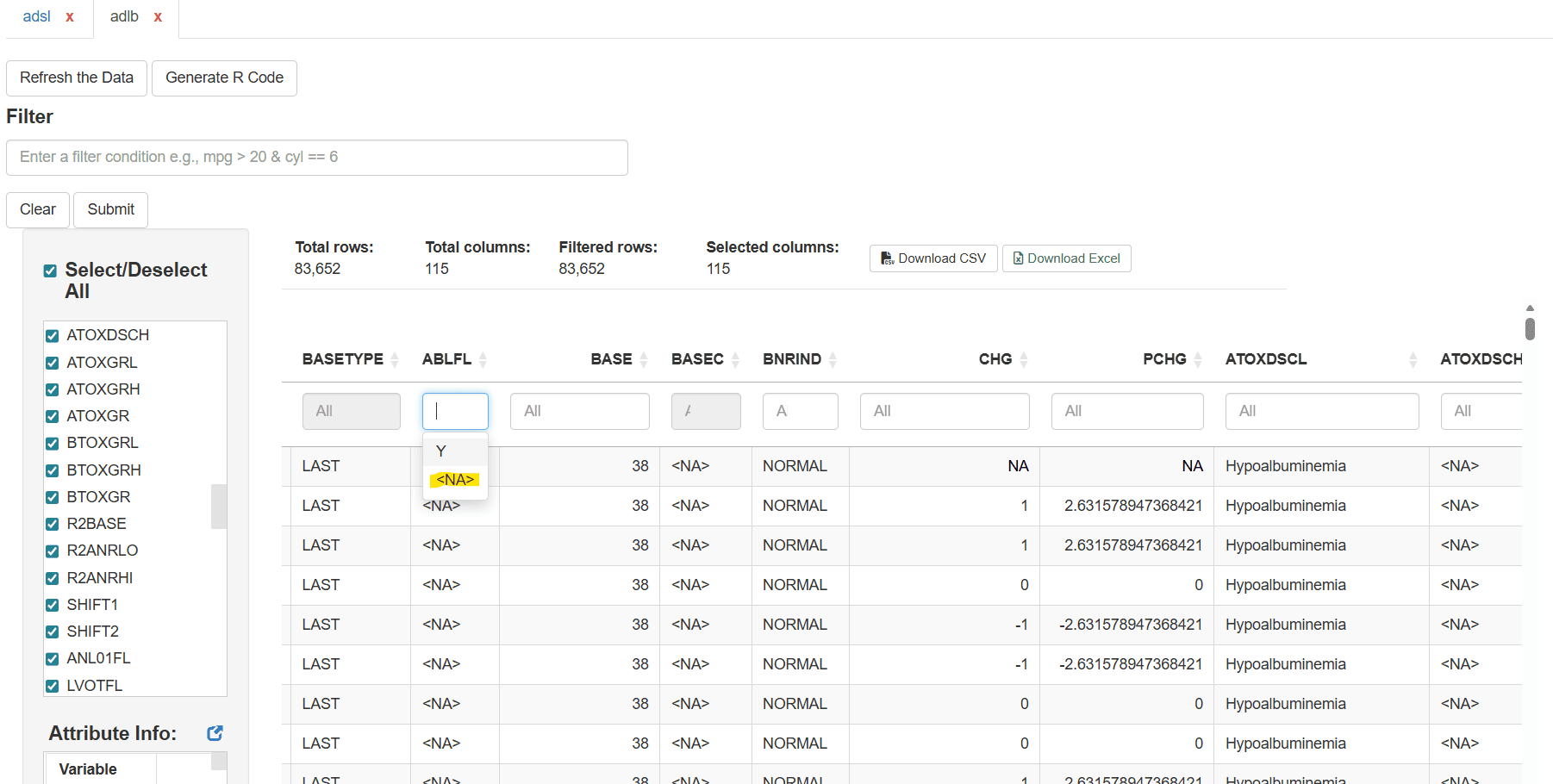
variables, the user can easily filter missing values from the quick
filter box (placed below the variable name) which will be visible as
<NA>. For numerical variables, the user can
filter using is.na() function in the Filter box.
In the below picture we can see how missing values are displayed for the character variables in the quick filter box
4. Exploring metadata - vital step in clinical data
In addition to the data exploration, user can also make sure the metadata (attributes) is correct.
For the better experience, user is requested to use the available pop-up option next to Attribute Info: text.
Hover to see how easily we can explore the variable attributes in the data
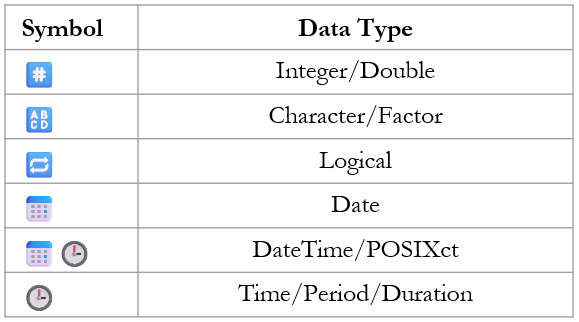
The table below lists the symbols (icons) used in dataviewR along with their corresponding data types.
Next article
Continue with: Exporting data and Wrapping Up the Session